A walkthrough for setting up a Salesforce Connected App and linking it to your Acitinar account, captured from a real setup end to end — screenshots included.
Once connected, clicking Sync Now creates or updates, per unlocked company: an Account, Contact records for employees with a verified email on file, and an Opportunity. Re-running a sync updates the same records rather than duplicating them — Accounts are matched by UK company number, Opportunities by a hidden reference Acitinar creates automatically.
Before you start
You'll need Salesforce admin access (Setup → App Manager) and about ten minutes. Nothing here touches your Salesforce data until you click Sync Nowat the end — connecting alone doesn't move anything.
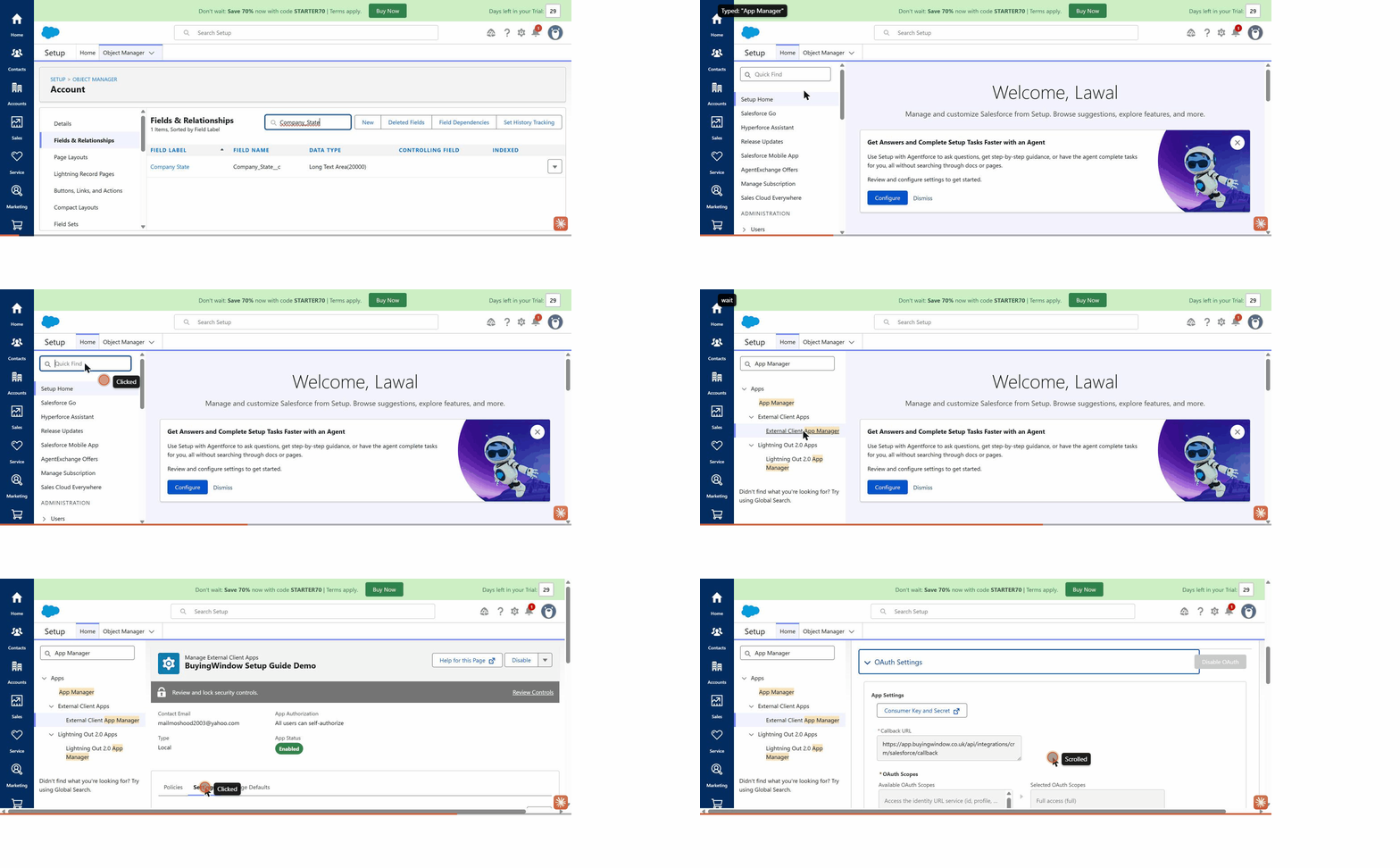
In Salesforce, go to Setup → App Manager → New Connected App (some orgs show this as New External Client App— same thing, newer name). Give it a name you'll recognize, like Acitinar, and a contact email.
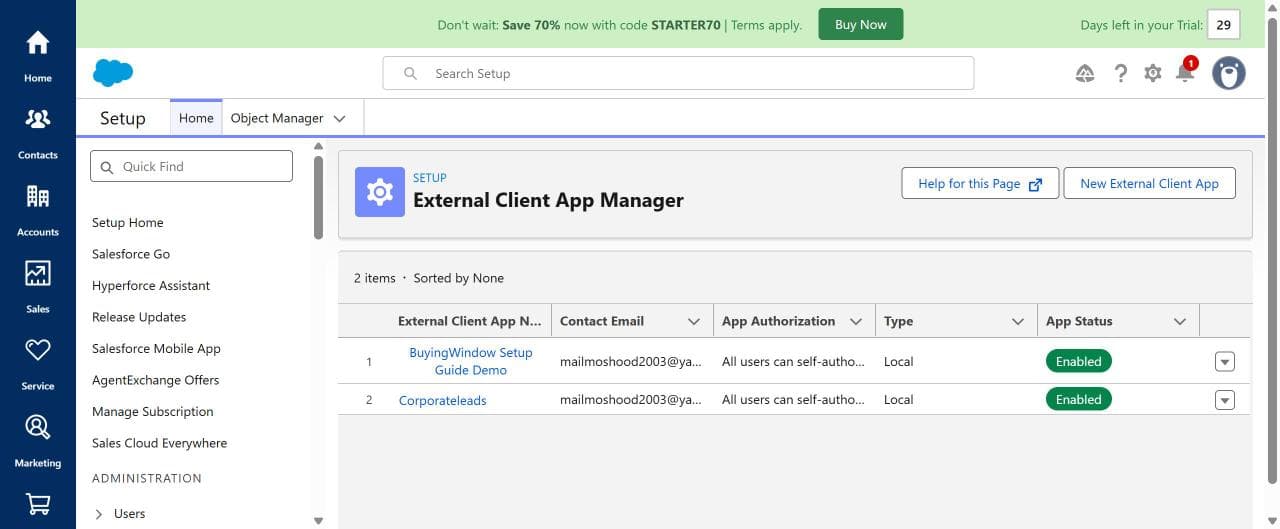
Inside the new app, expand OAuth Settings and check Enable OAuth. Two fields appear:
https://app.acitinar.com/api/integrations/crm/salesforce/callbackFull access (full) — needed to create/update Accounts, Contacts, and Opportunities, and to create a hidden reference field used for deduplicationPerform requests at any time (refresh_token, offline_access) — required, or Salesforce won't issue a refresh token and your connection will silently stop working later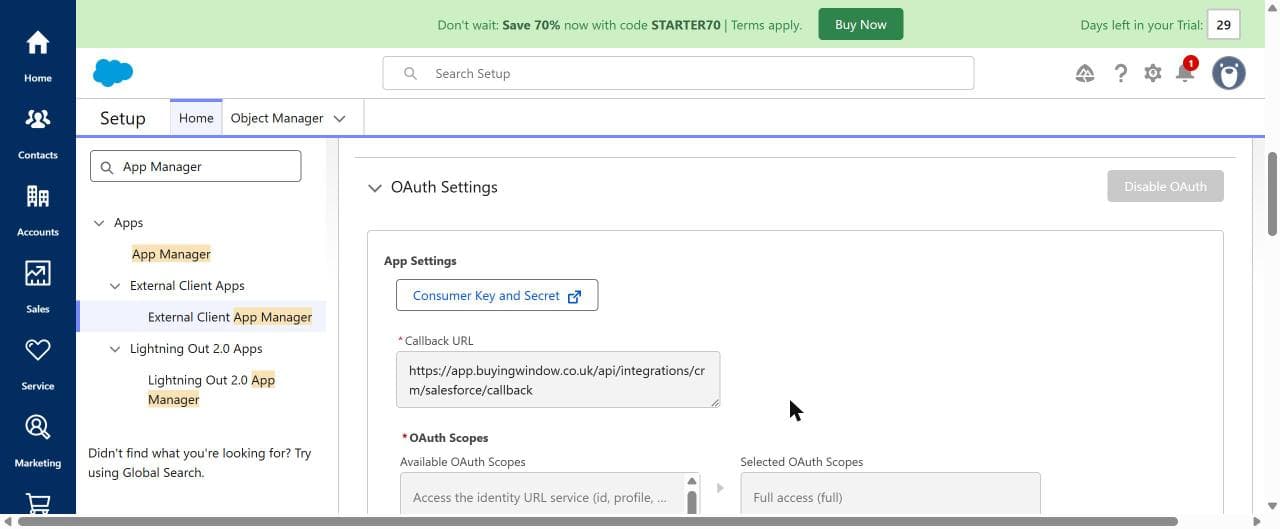
Where's the Consumer Secret?
Click Consumer Key and Secretabove the Callback URL. Salesforce will email you a one-time verification code before it reveals them — that's expected, not an error. You'll need both for step 4.
Before your first sync, create these custom fields on Account— Setup → Object Manager → Account → Fields & Relationships → New:
| Field | Type | Notes |
|---|---|---|
UK_Company_Number__c | Text | Must be marked "External ID" — sync fails on every record without it |
Company_Status__c | Text | Optional |
Total_Funding_Raised__c | Number or Currency | Optional |
Funding_Round__c | Text | Optional |
Company_State__c | Long Text Area (≥ 32,768 chars) | Holds a full AI-generated paragraph — a plain Text field rejects the whole sync |
Outreach_Angle__c | Long Text Area (≥ 32,768 chars) | Holds a full AI-generated paragraph — a plain Text field rejects the whole sync |
Pain_Points__c | Long Text Area (≥ 32,768 chars) | Holds a full AI-generated paragraph — a plain Text field rejects the whole sync |
Likely_Priorities__c | Long Text Area (≥ 32,768 chars) | Holds a full AI-generated paragraph — a plain Text field rejects the whole sync |
Strategic_Outlook__c | Long Text Area (≥ 32,768 chars) | Holds a full AI-generated paragraph — a plain Text field rejects the whole sync |
Only UK_Company_Number__c is strictly required — the rest sync gracefully as empty if you skip them. Two worth double-checking on the field itself:
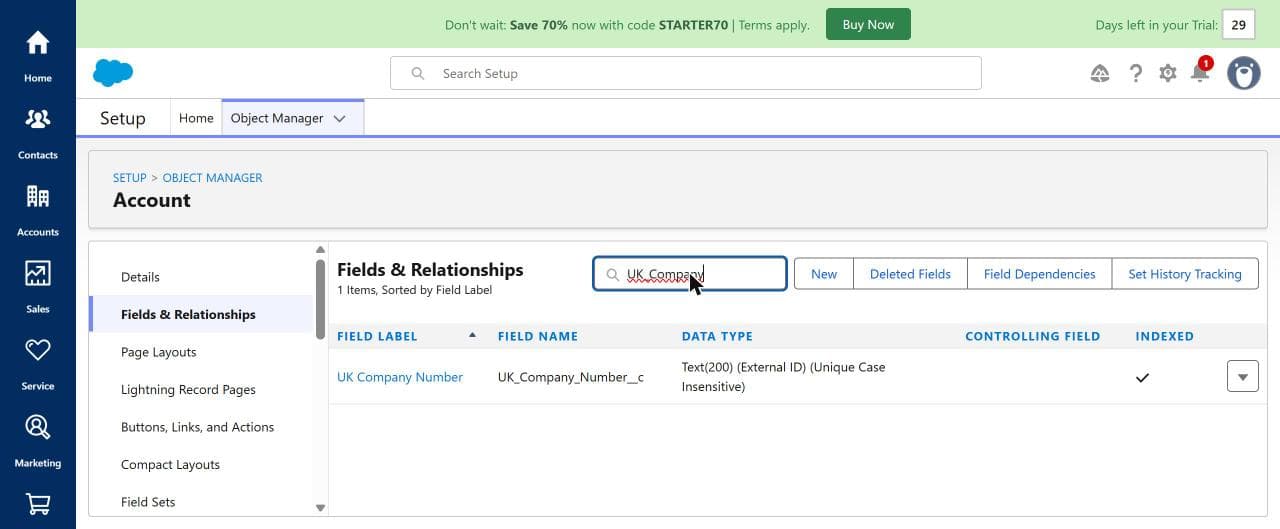
UK_Company_Number__c — Text(200), marked External ID. This is what lets a re-sync update the same Account instead of creating a new one.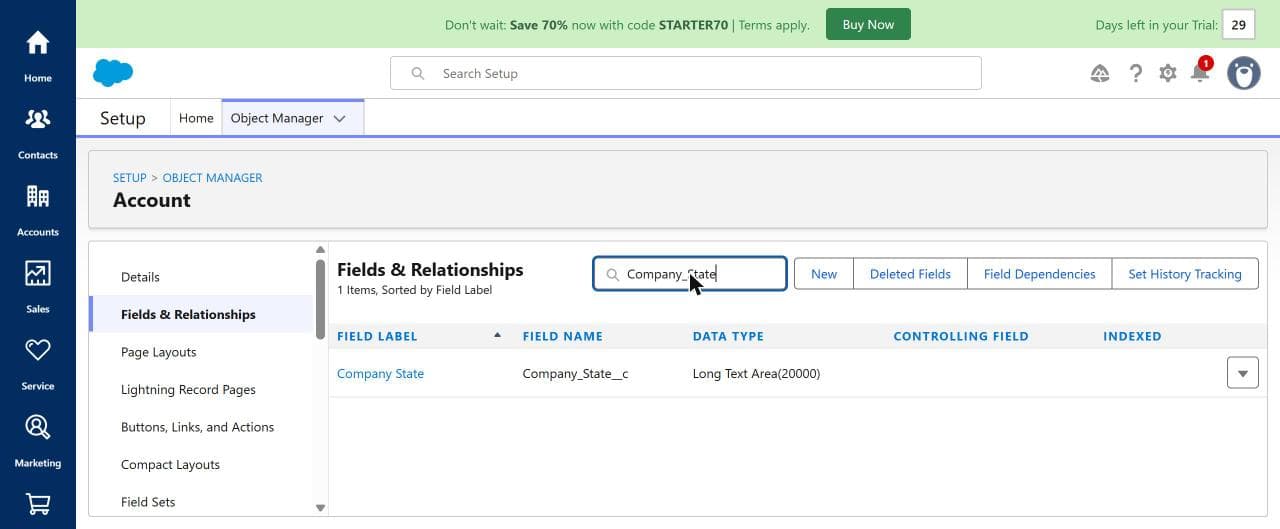
Company_State__c — Long Text Area(20000). The other three AI fields need the same type; a plain Text field is too short for what gets written to it.Here's the Connected App creation above, captured end to end — naming the app, enabling OAuth, setting the callback URL and scopes:
In your Acitinar dashboard, go to Settings → Integrationsand open the Salesforce card. Paste in your Connected App's Client ID (Consumer Key) and Client Secret(Login URL can stay empty unless you're on a sandbox), then click Connect with Salesforce.
You'll be redirected to Salesforce to log in — including any MFA your org requires — and approve access. Your Salesforce username and password are never entered into Acitinar itself; only Salesforce ever sees them.
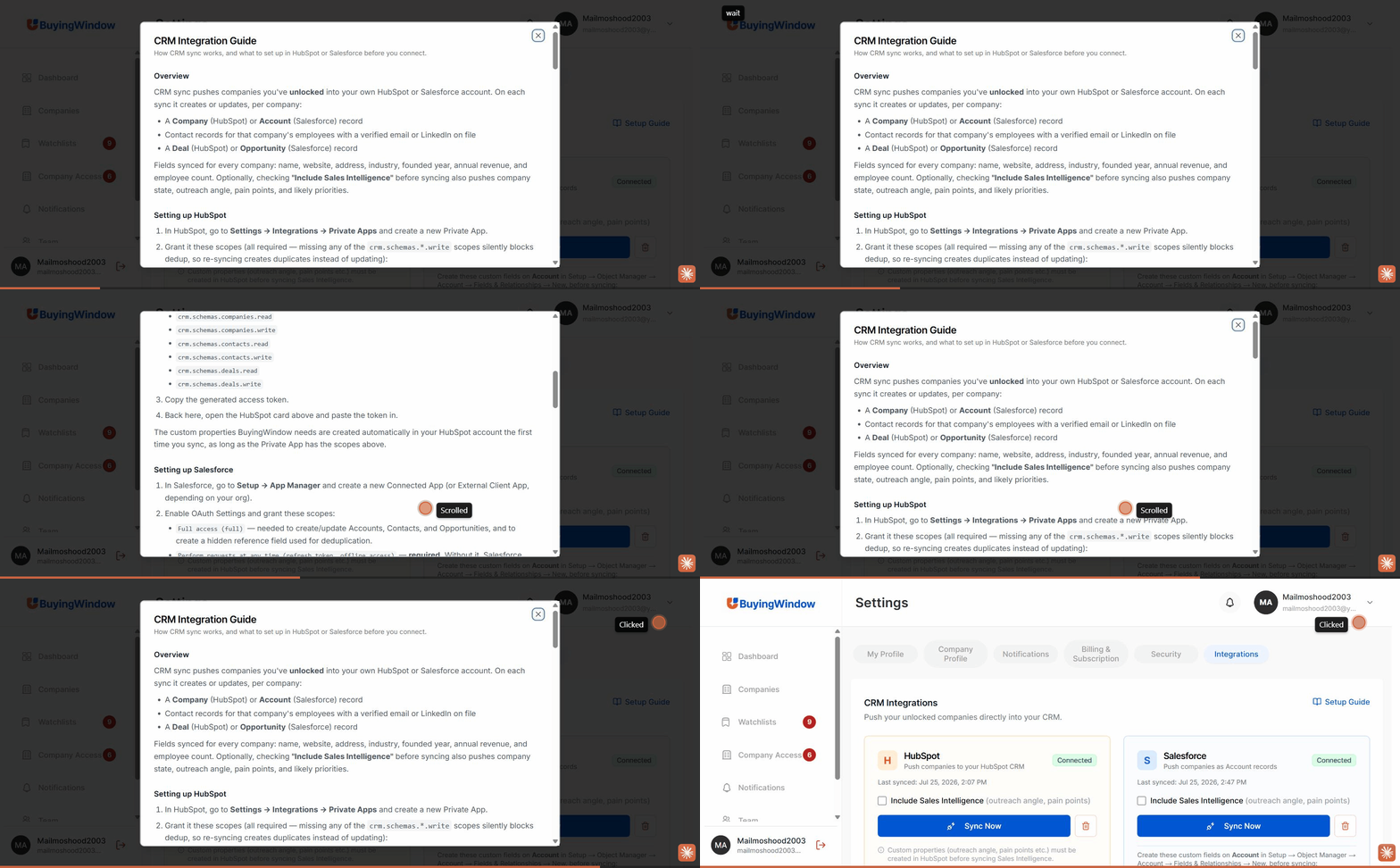
Once approved, you're redirected back to Settings and the card should read Connected:
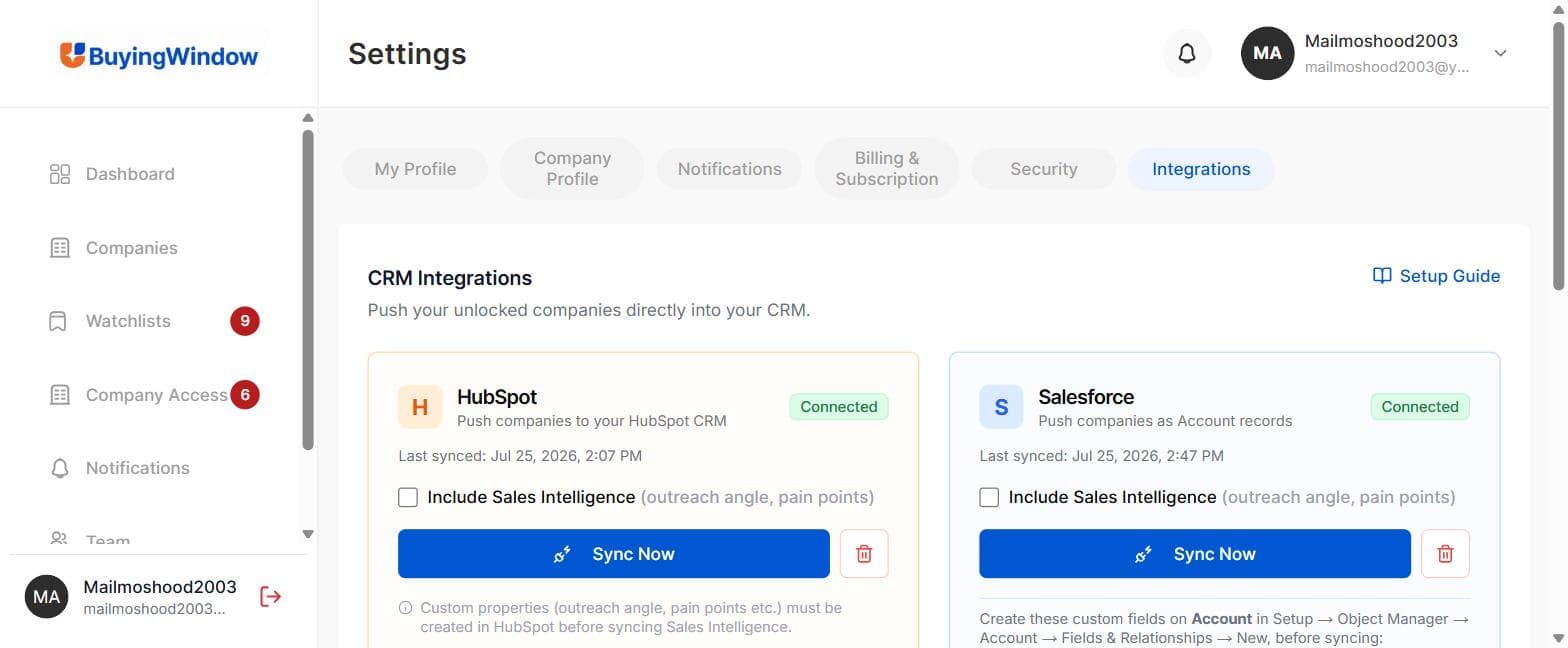
From here, click Sync Now whenever you want to push your latest unlocked companies. Check "Include Sales Intelligence" first if you also want company state, outreach angle, pain points, and likely priorities included.
| Symptom | Likely cause |
|---|---|
| Fails with "does not match an External ID for Account" | UK_Company_Number__c exists but isn't marked External ID. |
| Fails with "data value too large" | One of the five AI-summary fields is a plain Text field — needs to be Long Text Area, ≥ 32,768 chars. |
| Connection quietly stops working after a while | The Connected App is missing the "Perform requests at any time" scope, so no refresh token was ever issued. |
| Re-syncing creates duplicate Accounts instead of updating | The External ID flag wasn't in place on your first sync — fix it, then sync again; matching resumes correctly. |
| Reports a permission error on a specific field | That field's Field-Level Security hasn't been granted to your user/profile — Setup → Object Manager → Account → Fields → the field → Set Field-Level Security. |